

Overcome Porn with Victory by Covenant Eyes®
Millions of people struggle with pornography in silence. Victory® was created to replace isolation with accountability. Freedom through transparency is possible. It starts with taking the first step.
Don’t FIGHT alone.
Find freedom in Accountability
True freedom requires more than a filter or just technology. Our platform includes those, but also provides the power of human relationship through accountability with activity notifications, behavioral methodologies, and more.
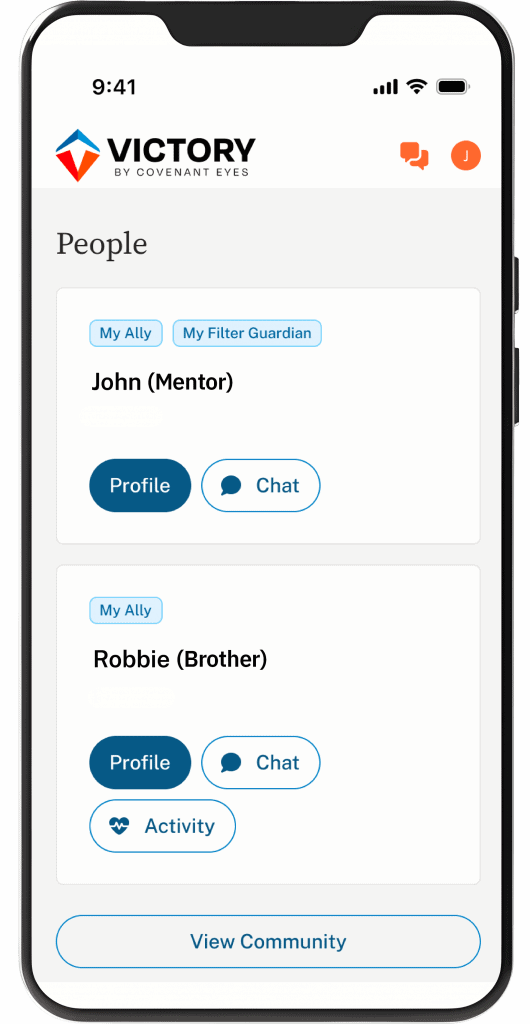
Screen Accountability*
Discreetly share your screen use with an ally, and find freedom through transparency.
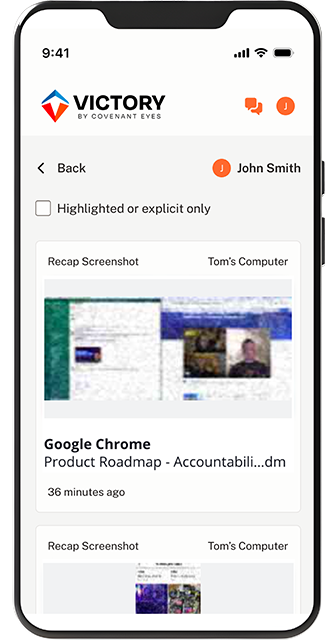
Activity Feed*
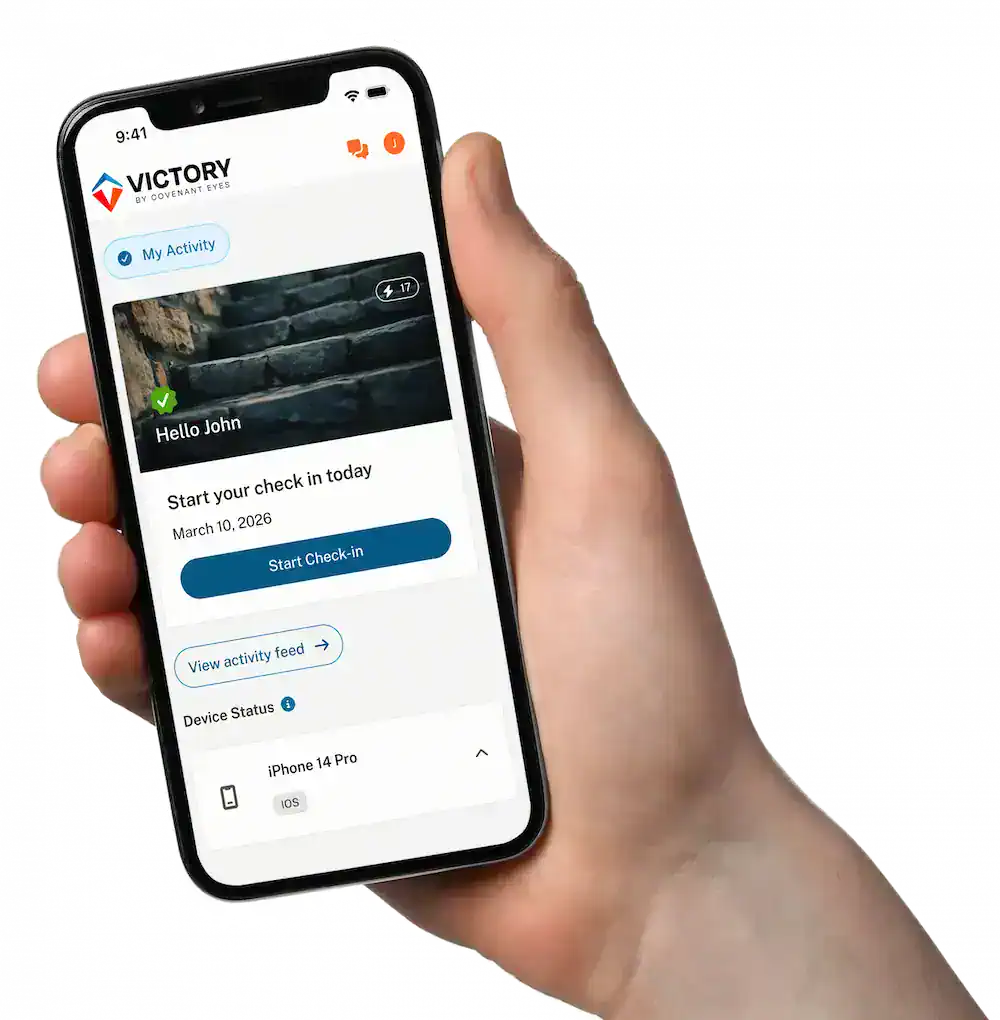
Stay accountable with device usage tracking, real-time notifications, and accountability prompts.
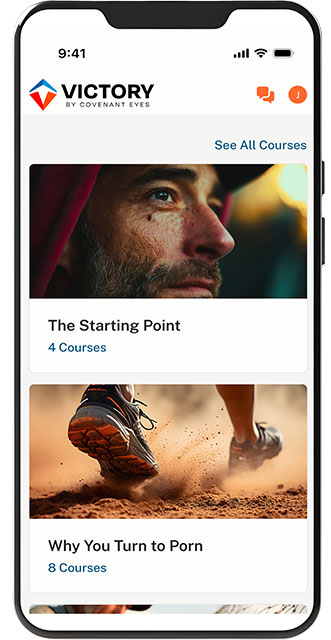
Learning Courses
Understand why you’re tempted and discover the path towards true wholeness.
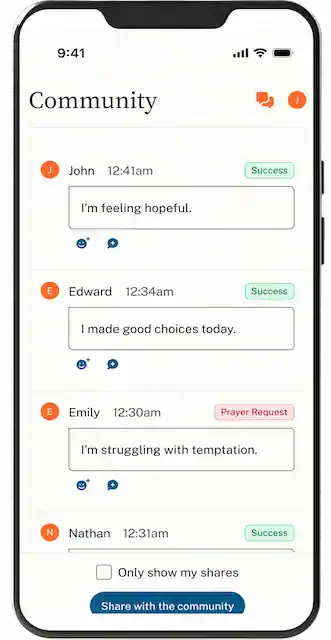
Community Connection
Connect to a supportive community for encouragement and prayer at any time, day or night.
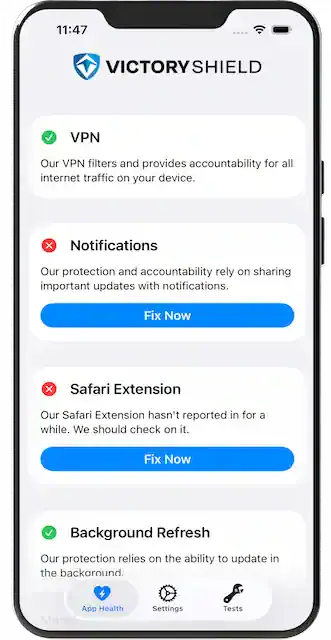
Advanced Security*
Screenshots are blurred, distorted, and encrypted with AES 256-bit security, then deleted after 30 days.
*These features are delivered by our proprietary Victory Shield™ app, available through paid Victory membership.

Empowering Trust
Technology that’s Relational
While others focus on blocking, Victory® starts with relationships. Individuals. Couples. Parents. Friends.
Pricing
Pricing Plans
Pick the payment plan that’s right for you.

Monthly
$18
Per Month
Save 10%
Yearly
$198
Per Year
Save 50% over 10 years.
Lifetime
$950
One-time Payment
Try it for 30 days.
Learn More.
All plans cover unlimited devices for up to 10 individual users within a family.
Try it for 30 days.
Learn More.
All plans cover unlimited devices for up to 10 individual users within a family.
How it Works
How to Get Started
Follow these steps to set up Victory®, connect with an ally, and stay committed to your journey.
- Sign up for your Victory Account.
- Download the Victory app.
- Install Victory Shield on all your devices.
- Invite your ally through the Victory app.
Testimonies
“Covenant Eyes has provided light at the end of the tunnel.”

Lolo
Victory Member
“I love personal accountability. It helps me by asking how I am doing every day to ensure I am not alone in this journey.”

Nathanael
Victory Member
“Thanks to the help of my allies through Covenant Eyes, I have begun to retake control of my life from porn.”

Samuel
Victory Member
Join 1.7 Million others in overcoming porn with Victory!
Devices
We Support These Platforms
Victory® Screen Accountability and Blocking is available on iOS®, Mac®, Android™, and Windows.
iOS – 15.1+
- Takes screenshots and sends to ally (Safari browser only)
- Reviews, reports, and blocks explicit domain activity across all apps
- Supports custom block/allow list across browsers and apps*
Mac – 11+
- Takes screenshots and sends to ally
- Blocks explicit domains
- Supports custom block/allow list across browsers and apps
Android – 11+
- Takes screenshots and sends to ally
- Blocks explicit domains
- Supports custom block/allow list across browsers and apps
Windows – 10+
- Takes screenshots and sends to ally
- Blocks explicit domains
- Supports custom block/allow list across browsers and apps
Screen Accountability not available on Chromebooks, Kindle Fires, or Smart TVs.
*Couple with iOS Screen Time Limits and App Restrictions for full protection.
Victory by Covenant Eyes
Start your path to recovery today with Victory by Covenant Eyes®. Download the app, set up your account, and connect with a supportive community for guidance and accountability.

